


Introduction to the Startup Portfolio
The Startup Portfolio gives you a centralized view of the startups in your ecosystem. From here you can browse startup profiles, check key details, and access the information you need to prepare for and follow up on coaching sessions.
What you can see in the Startup Portfolio depends on the visibility permissions configured for your user role by your program administrator. You may see all startups in the program or only the ones connected to you.
Where to Find the Startup Portfolio
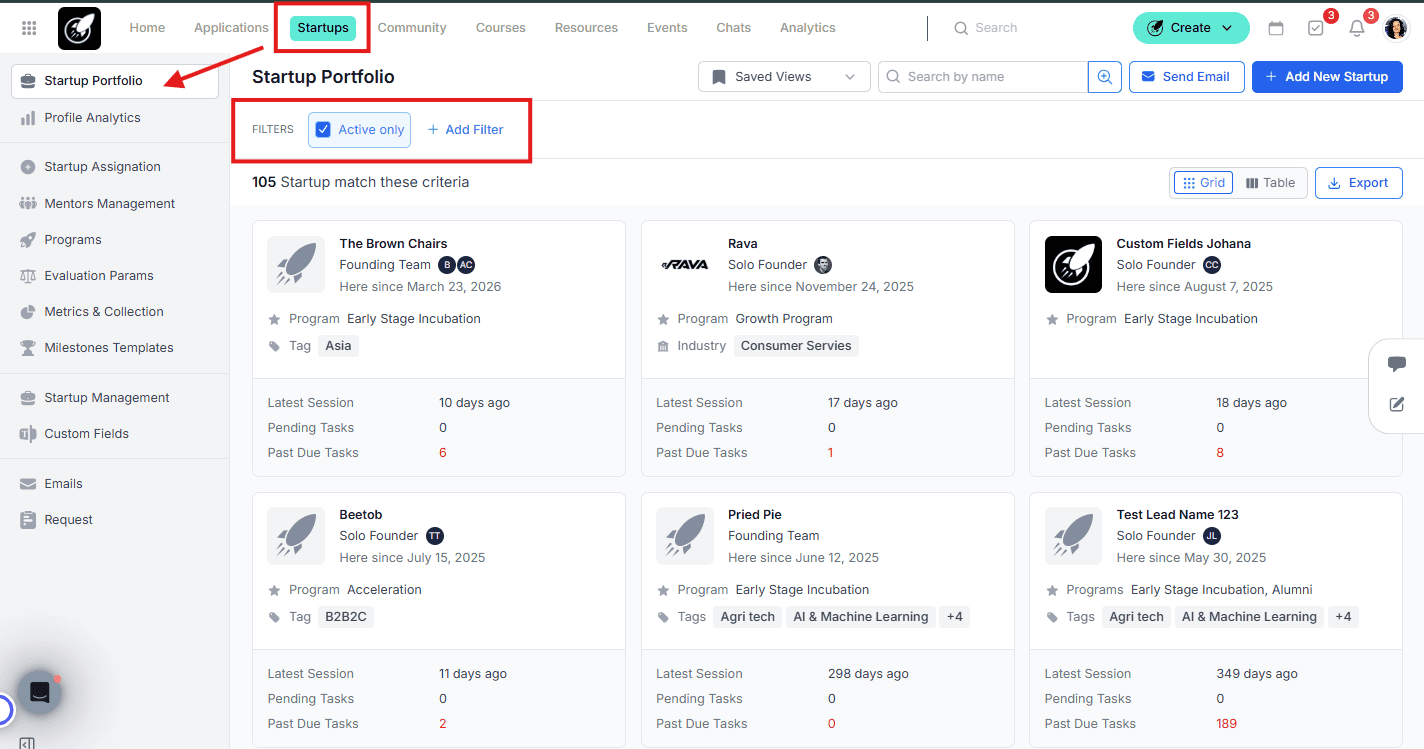
Click on Startups in the top navigation menu to open the Startup Portfolio.
Step-by-Step
1. Browse the Startup Portfolio
In the Startup Portfolio, you can switch between two view options:
- Grid view — displays each startup as a card with key information for quick browsing.
- Table view — organizes startups in a table format, allowing you to see more details at a glance and select which columns are visible.
Key details available include startup name, program, tags, industries, last coaching session date, and pending tasks.
2. Search and Filter
Use the search bar to find a specific startup by name. You can also apply filters to narrow down the list:
- Active Only — toggle to show only active startups and hide inactive ones.
- Add Filter — filter by industry, tags, program, number of founders, connected users, and custom fields from the startup profile. Available filters may vary depending on your plan.
3. Send an Email
Click the Send Email button to send a message to one or more startups directly from the portfolio. From the email composer you can define your audience (a whole program, any user role, etc), choose a sender, select a template, and customize the content before sending.
4. Access a Startup File
In Grid view, hover over a startup card to reveal two options:
- Public Profile — view the startup's public-facing profile page.
- Startup File — access the startup's full internal page, including activities, coaching sessions, metrics, milestones, and more.
Click directly on a startup in Table view to open their file.
5. Use Saved Views
If you regularly browse startups with the same filters, save your configuration as a Saved View for quick access. Click Saved Views to load any previously saved configuration.
Saved views always open in Grid view regardless of which display mode was active when the view was saved. Access to Saved Views is controlled through User Role Settings — contact your program administrator if you do not see this option.
Best Practices
- Use your Profile page to quickly find your directly assigned startups. The Startup Portfolio may show all startups visible to your role — your profile filters it down to only the ones connected to you.
- Use filters to prepare for sessions. Filtering by program or tag before a session helps you quickly surface the right group of startups without scrolling through the full list.
- Save your most-used filter combinations. If you regularly check the same group of startups (e.g. a specific cohort), save it as a view so you can access it in one click.